
Scan Your Closet for Cross-listing
On your own closet page in Poshmark, RelistKit can check which of your listings are already in RelistKit and which marketplaces each one is missing, then put the right button right on each listing card. Nothing happens until you ask for it. Scanning works on every plan.
Before you start
- You're signed in to Poshmark in Chrome, on your own closet page.
- The marketplaces you sell on are switched on under Settings → Cross-listing platforms in RelistKit.
- You've published at least one Poshmark listing with RelistKit. That's how RelistKit learns which closet is yours.
1. Open the RelistKit menu
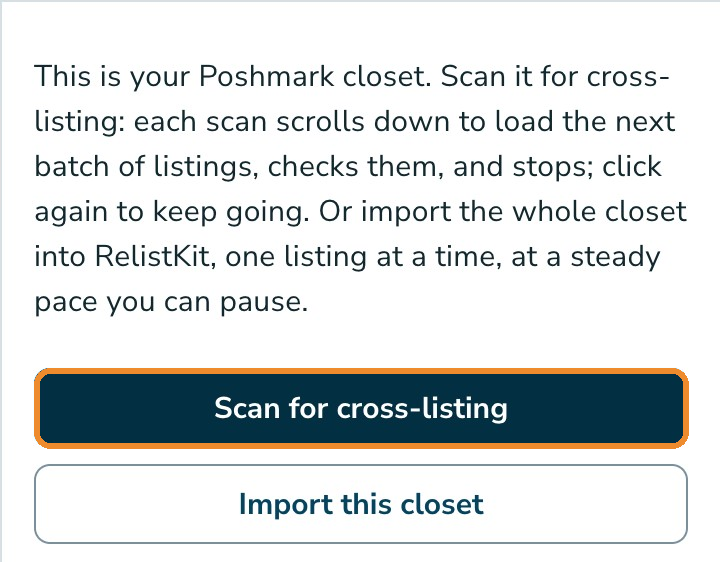
Your closet page has one RelistKit button, in the lower right corner. Click it to see two choices:
- Scan for cross-listing
- Import this closet (Growth and Pro; see Import Your Closet)
2. Scan your listings
Click Scan for cross-listing. RelistKit scrolls down to load a batch of your listings, and checks each one against your inventory. The result reads like:
"Scanned 72 of 120 listings. 24 of them are in RelistKit: 19 can still be cross-listed (each shows a button on its card) and 5 are already on every platform you sell. The other 48 are not in RelistKit yet; each shows Add to RelistKit…"
Each listing card then gets a button:
- Cross-list on eBay (or another marketplace) when one is missing, or Cross-list to all when two or more are. Click it, and each marketplace opens with the listing filled in.
- On every platform you sell, greyed out: nothing left to do.
- Add to RelistKit: the listing isn't in RelistKit yet. Click it to add just that one, in a new tab. The card then shows a cross-list button.
Sold listings, and ones that aren't for sale, get no button.
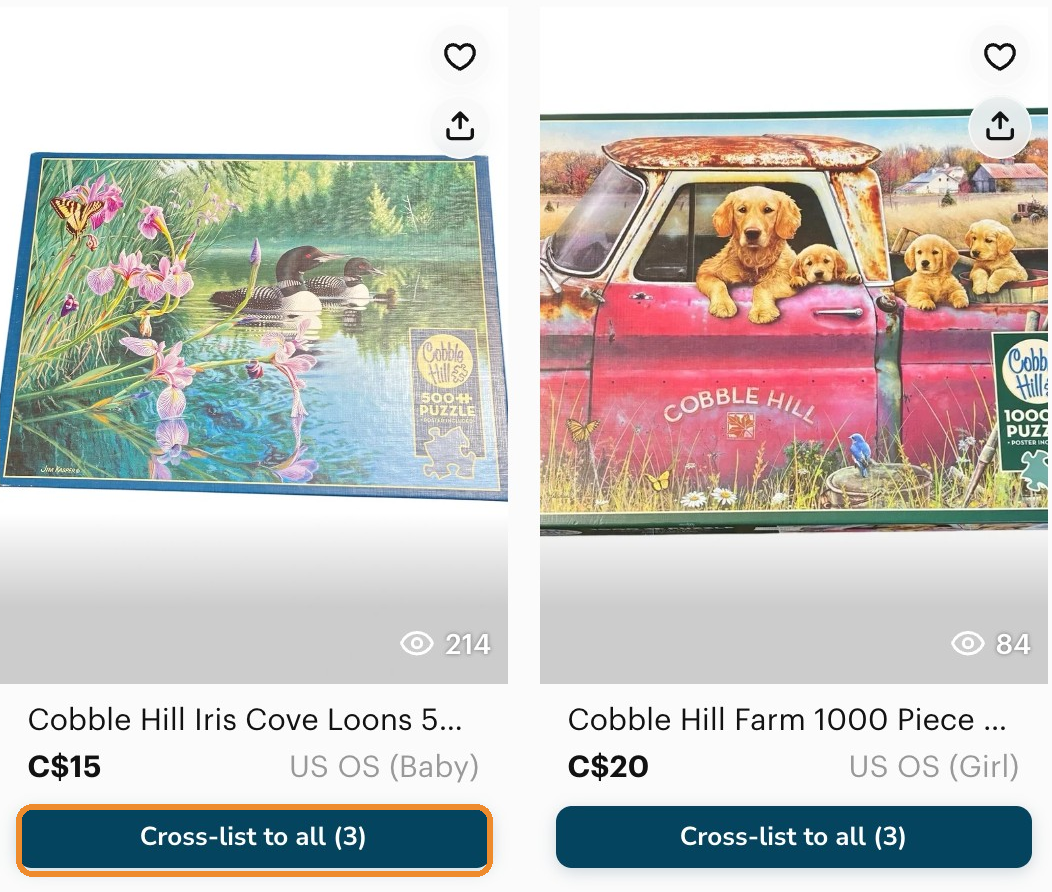
A cross-list button fills the other marketplaces right away. To make square photos first, open the item in RelistKit (see Before You Cross-list).
3. Scan the rest
Click Scan more. RelistKit scrolls down for you and checks the next batch. Repeat until it says "That is the whole closet."
If you leave or reload the page, the scan starts over: click the RelistKit button, then Scan for cross-listing again.
Common questions
I filtered or searched my closet.
The scan covers only what's on the page, so a filtered closet scans only those listings. It's a handy way to work through one brand at a time. When it's done, it says "That is every listing in this view."
I don't see the RelistKit button on my closet.
Check that it's your own closet, and that the extension is connected. RelistKit recognizes your closet once you've published a Poshmark listing with it. Then reload the page.
Why doesn't a card offer Depop or Facebook Marketplace?
Cards only offer the marketplaces you've switched on in Settings, and that your plan includes. The Free plan cross-lists to eBay.
Does Add to RelistKit use a credit?
No. It copies your listing into RelistKit exactly as you wrote it.
Should I scan or import?
Scan to cross-list listings, and to add a few that aren't in RelistKit yet. To bring your whole closet in at once, use Import this closet (Growth and Pro).