
Before You Cross-list
The item page in RelistKit is where an item lives, and the thirty seconds you spend there decide how it looks on eBay, Depop and Facebook Marketplace. RelistKit can cross-list straight from Poshmark after you publish, but we recommend opening the item in RelistKit first. After you publish on Poshmark, the RelistKit panel's first button is Open item in RelistKit. That way, you can quickly make square versions of your photos before you cross-list.
1. Make the first photo square
Poshmark shows photos as you took them. eBay crops the main photo to a square its own way, which can cut off the item, and Depop pads it with white edges.
- Under Photos, click the scissors on the photo you want to square.
- Drag the photo to choose what goes in the square.
- Click Save & exit, or Save & next to save and move on to the next photo.
The photo shows Square ✓.
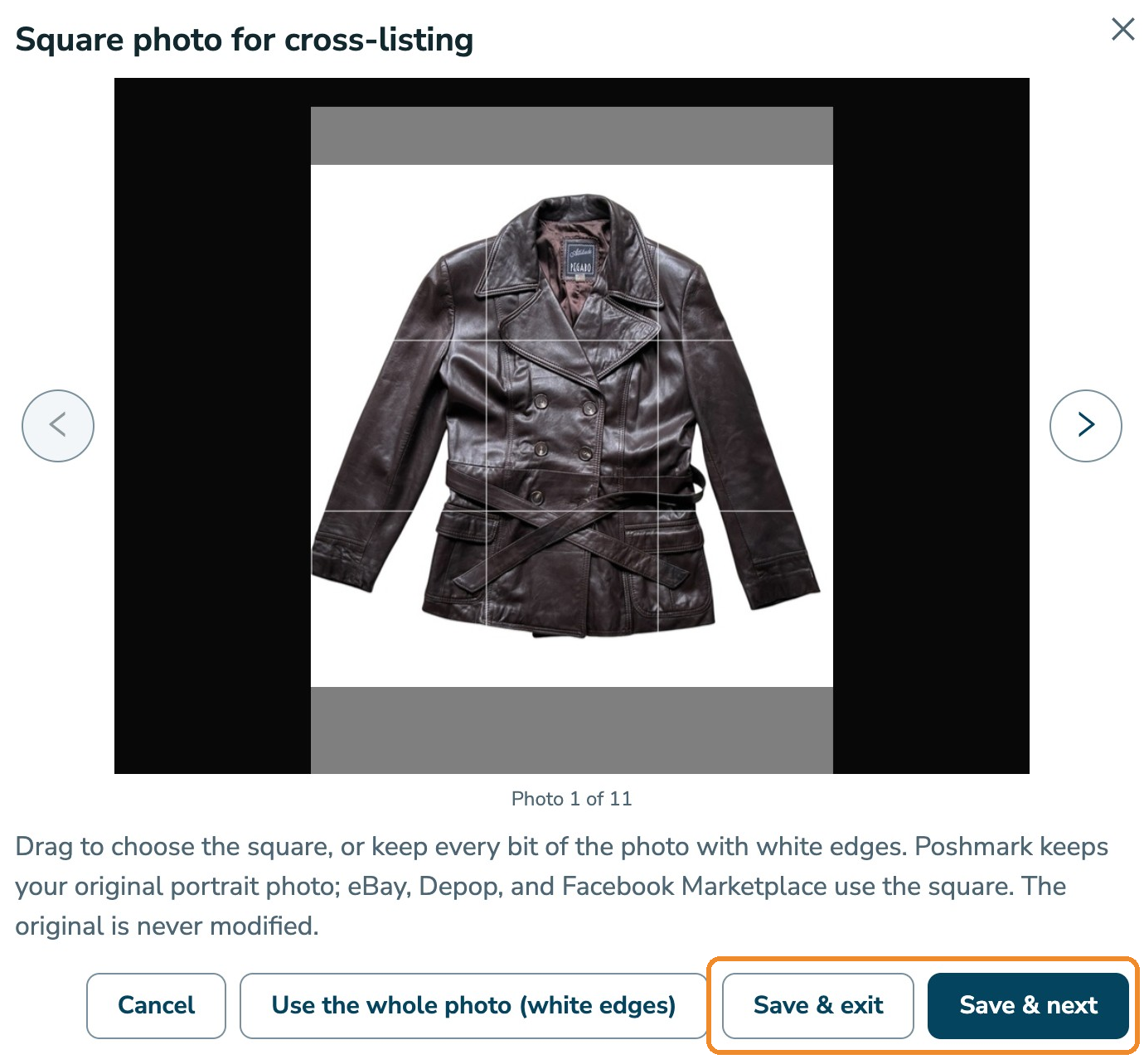
If the photo needs its edges, like a tape measure or a full-length shot, click Use the whole photo (white edges) instead. RelistKit squares it with white space, and the badge reads Edited ✓.
Poshmark keeps your original either way: only eBay, Depop and Facebook Marketplace use the square. Repeat this for any other photo you want to look right as a square.

A few more things you can do under Photos:
- Change the order: drag a photo to a new spot. Cross-listing uses this order. Poshmark keeps its own.
- Keep a shop graphic on Poshmark: click the eye icon on it. It's marked Poshmark only, and RelistKit learns to spot it after a few listings.
- Add or replace photos: click Add photos, or the replace icon on a photo.
2. Read the text with the other marketplaces in mind
Read the title and description on Poshmark once. Things to check:
- Flaws. Say them plainly. A described flaw is a sale; a hidden one is a return.
- The condition line. The first line of your description that talks about condition, like "Excellent preowned condition with light wear", sets the condition on eBay and Depop, and becomes eBay's condition description. Write it the way you want buyers to read it, and the other marketplaces follow.
- Depop. Depop has no title box: its description starts with your title, then your description, then up to 5 hashtags made from your style tags.
Make text changes on Poshmark, with Edit listing. Each time you cross-list, RelistKit reads your live Poshmark listing first, so your latest title and description go to the other marketplaces.
3. Enter the cost and SKU
If you skipped the cost and SKU before RelistKit wrote the listing, enter them now:
- Under Listing details, enter what you paid under Bought for. It makes your profit figures real.
- Enter a SKU if you use codes to find things on your shelf, like
B12-014. eBay gets it as its Custom label (SKU). Buyers never see it. - Click Save details.
If you sell for consignors, SKUs can also link items to a consignor in bulk (see Consignment Partners and Commissions).
4. Cross-list
Under Platforms, on the right side of the page, each marketplace you sell on shows the price it will get and a button. In most cases, click the top button, Cross-list to all, to list everywhere at once. The prices come from your pricing rules (see Set Your Pricing Rules).
Each marketplace opens in its own tab. Leave each form alone until its RelistKit panel has finished filling, then check it and publish there. For each marketplace, see Cross-list to eBay, Cross-list to Depop and Selling on Facebook Marketplace.
Common questions
Do I have to square every photo?
No. Photos you don't square go as they are. The first photo matters most: it's the main photo buyers see.
Does squaring a photo change my Poshmark listing?
No. Poshmark keeps your original photo.
I changed the title in RelistKit, but eBay got the Poshmark one.
Cross-listing reads your live Poshmark listing first, so make text changes on Poshmark.
Why is there no cross-list button for a marketplace?
One of these is likely:
- the item is already listed there, or it's sold
- the marketplace is switched off under Settings → Cross-listing platforms
- your plan doesn't include it (the Free plan cross-lists to eBay)
- you're not in Chrome with the RelistKit extension, so the buttons are greyed out