
Sales Reports and Exports
Sales is where every sale ends up, whether it was recorded from an email or by you. It has three tabs:
- Overview is today's picture.
- All sales is the full list, which you can download.
- Platforms compares where you sell.
Overview
Click Sales in the top menu, and the Overview tab opens. It shows:
- this month so far and this year so far: your sales, revenue and profit, each with how it compares with the same days last time
- a Needs attention card, for sales waiting for review and recent sales missing a label cost
- revenue and profit per month, for the last twelve months
- your most recent sales
All sales
Click the All sales tab. Every sale is listed, newest first. Narrow the list with the filters across the top:
- Search item name or SKU
- the marketplace
- the source: your own items or a consignor's (when you sell on consignment)
- which sales, like Missing label cost or From my own closet
- the status, like Needs review or Refunded
- the date range, like This month, Last month or Custom range
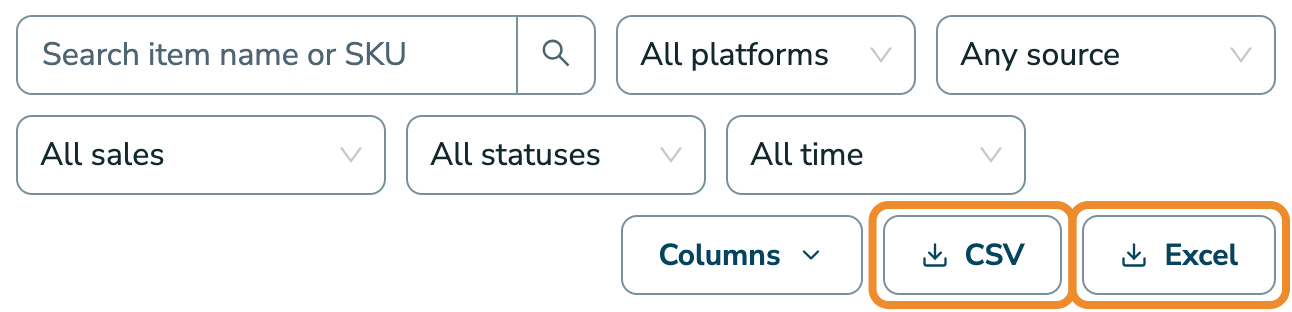
Click Columns to choose which columns show. Your choice is remembered in this browser. The headings stay put while you scroll.
Each row has up to three buttons in its last column:
- the pencil, to edit the sale (see Correcting a Sale)
- the refund arrow, to record a full or partial refund (see Refunds and Returns)
- the bin, to delete a record that shouldn't exist
Profit
Profit is what you were paid (already after the marketplace's fees), less:
- what the item cost you, from its item page
- the shipping label, when you enter it
- any refund
- any selling costs you tied to the item
Enter your costs, and profit becomes real. See How RelistKit Counts Your Costs.
Download your sales
- Set your filters, like a date range.
- Click CSV or Excel above the table.
You get every sale that matches, not just the page you're on, with every column, whatever Columns shows.
Platforms
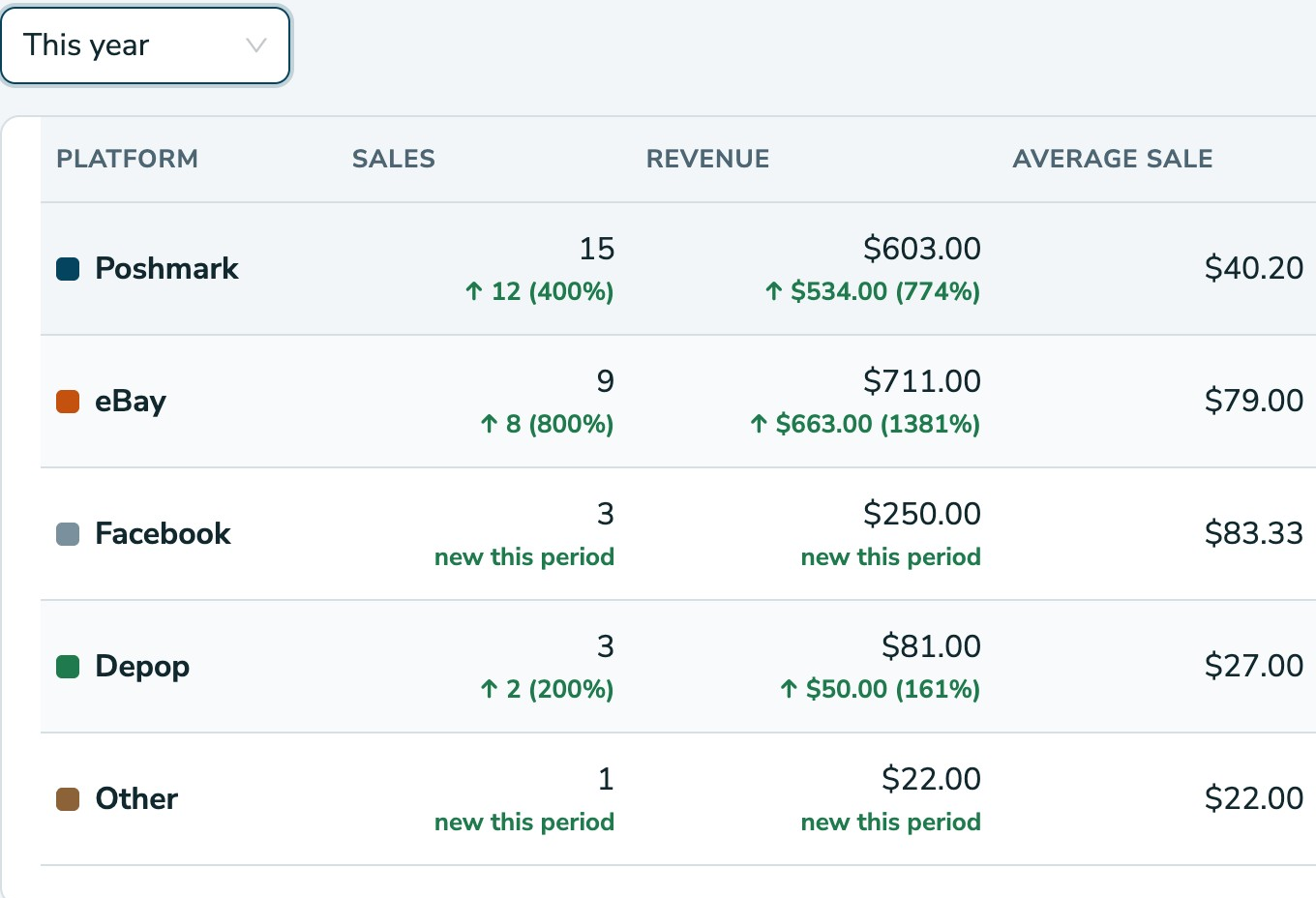
Click the Platforms tab to see where the money actually is. For the period you choose, each marketplace shows its sales, revenue, average sale, fees, what you kept, your costs and profit, with how each changed. A chart below shows the last twelve months.
Common questions
Revenue and my bank don't match.
Revenue here is what the buyer paid, including any shipping they paid you. Marketplaces pay you after their fees, and on their own schedule. Fees are their own column. To see when money came in, see Money In and Out.
Why is profit here different from my profit and loss?
Profit on Sales is the profit on each sale. Your profit and loss also takes off your business expenses and consignors' shares, counts refunds on the day you gave them, and leaves out sales from your own closet. See The Profit and Loss.
Where do consignor shares show?
When you sell on consignment, All sales has a Consignor's share column. The totals for each consignor are under Trackers → Consignors.
Can I get a single month for my accountant?
- On All sales, set the date range to the month.
- Click CSV or Excel.
On the Pro plan, Reports → Downloads puts every report for a year in one file (see Year-end Reports for Your Accountant).
Why does a refunded sale still show?
It stays in the list for your records, with a Refunded status. A full refund doesn't count in your totals.