
Your Account
The Account page is where you change how RelistKit knows you and reaches you: your name, your email address and your password. It also holds your data requests.
To open it, click your initials in the top right corner of RelistKit, then click Account.
Change your name
Your name is what RelistKit calls you in emails and support conversations. It also sets the initials in the top right corner.
- In the Profile card, click into Name.
- Type the new name.
- Click anywhere outside the field, or press Enter. It saves straight away.
Change your email address
You sign in with this address, and on Starter and up, sale alerts go to it.
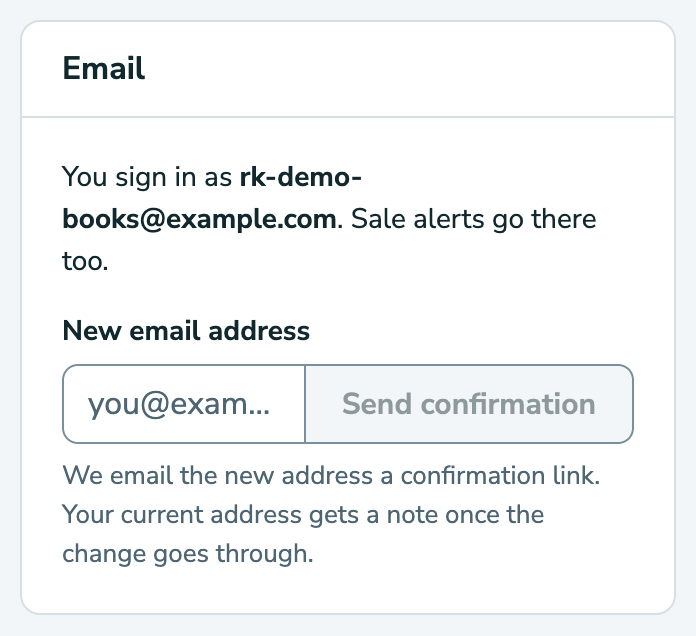
- In the Email card, type the new address under New email address.
- Click Send confirmation.
- Open the email RelistKit sends to the new address, "Confirm your new RelistKit email address", in a browser where you're signed in to RelistKit.
- Click Confirm this address.
RelistKit says "Your email address is confirmed", and from then on you sign in with the new address. Your old address gets a note that the change went through.
Until you confirm, nothing changes. The card says it's waiting for you, with a Cancel button to withdraw the request. Sending a new request replaces the old link.
Open the confirmation link in a browser where you're already signed in to RelistKit. If you open it somewhere you're signed out, sign in there, then open the link again.
Change your password
- In the Password card, enter your Current password.
- Enter the new password under New password, and again under Confirm new password. It needs at least 8 characters, and a hint under the field rates how strong it is.
- Click Change password.
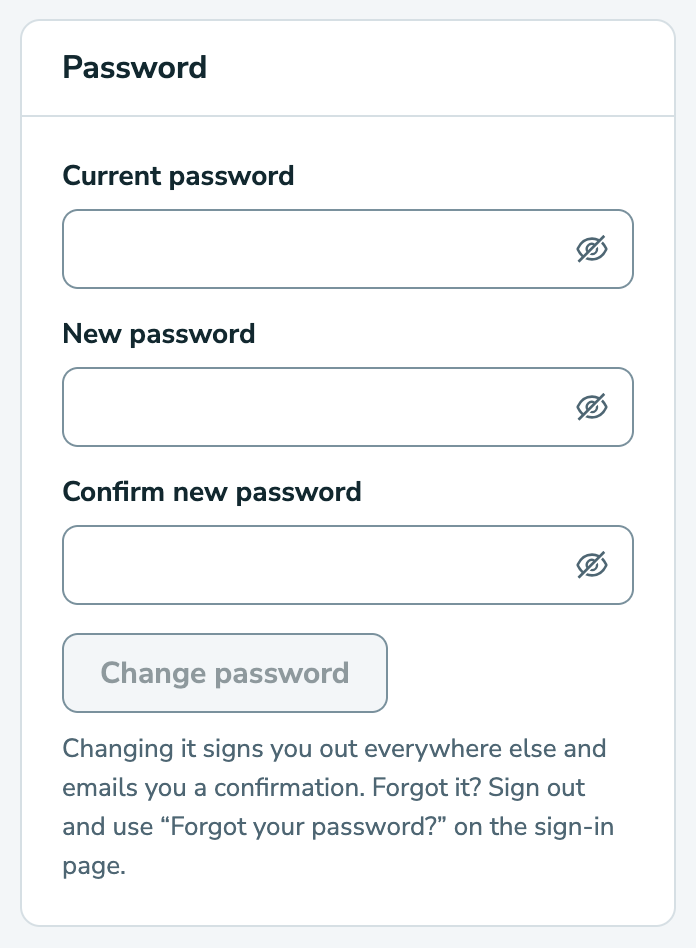
Change password stays greyed out until your current password is in, the new one has 8 or more characters, both new fields match, and it's different from your current one.
Changing your password signs you out on every other device, like your phone, and emails you a confirmation. The browser extension keeps working: it has its own connection.
Your data
The Your data card has two buttons: Download my data and Delete my account. Each one opens a support ticket, so your request is logged with the date, and we complete it within 30 days. See Your Data: Export and Deletion.
Common questions
I clicked the confirmation on my phone, and it asked me to sign in.
Sign in there, then open the link again. Or open it on the computer where you're already signed in.
No confirmation email arrived.
Check your spam folder. Or click Cancel on the card and send a fresh one: the new link replaces the old.
I forgot my current password.
Click your initials, then Log out. On the sign-in page, click Forgot your password?. See Resetting Your Password.
Where do I change my plan, or find my invoices?
In Settings, on the Your plan card. See Plans, Credits and Billing.
How long does RelistKit keep me signed in?
Two weeks. After that, sign in again.